| List Of Common Errors:
This document lists ProFlight errors, how to get rid of them and other console output. If ProFlight quits but does not give you any error, try increasing the Log Level.
Errors can appear in various locations, but the most common one is the console (a black window), which pops up when you run ProFlightSimulator
Errors with solutions
Airports/.... ... Done
This is not an error. The message lets us know that TerraSync is updating the SCENERY/Airports directory.
Base package check failed ... Found version [none] at: ...
Please upgrade to version:
- ProFlight was unable to find the root directory. Set it using the --fg-root= commandline option.
condition: comparison without property[1] or value
A condition (like <less-than> or <equals>) exists, without either:
- a property to check
- a value to check the property against
Could not find at least one of the following objects for animation:
This means that ProFlight is unable to find an object in a .ac file. Check the .xml file (where the animation is stored) to see if the object-names match those in the .ac file. Also in the .xml file make sure that there are not spaces at the beginning or end of the object name. If you are not the aircraft's author you can safely ignore such warnings.
creating 3D noise texture... DONE
Tells you that a new noise texture is created. It is not an error and can be ignored.
Error: [Screen #0] GraphicsWindowWin32::setPixelFormat() - No matching pixel format found based on traits specified=
Try changing the BPP value of your ProFlight setup. If that does not work, your graphics card is probably not able to run ProFlight 1.9 and higher. Another graphics card, or an older ProFlight version will likely "fix" the problem.
Error: bind() failed in make_server_socket()
When using multiplayer or socket input, this usually means you specified an invalid ip address or the port is in use. Note: for multiplayer, you don't need to use the --multiplay=in,... option at all, ProFlight (since version 1.0) figures out the proper setting automatically. Only use when you know what you are doing.
Error Building Technique: findAttr: could not find attribute bool
Make sure that your data and source (or binary) match. They must be from the same date, to provide the best performance.
Error: connect() failed in make_client_socket()
SG_IO_OUT socket creation failed
Your computer is not connected with the internet.
Error: RenderTexture requires the following unsupported OpenGL extensions...
Your graphics card doesn't support some graphics feature that FG requires. Update your drivers, change the BPP value and/or try disabling some of the visual goodies like 3D Clouds.
Failed to find .... in apt.dat.gz
You need to edit ATC/default.tower and ATC/default.atis. You can open these files with any text editor. Either remove or fix the entries containing your airports ICAO code (like KSFO).
Failed to locate aircraft carrier = ...
ProFlight is unable to find a carrier under the set name. Check your commandline (--carrier=...) or the airport page of the launcher.
Hint: Make sure your park position and carrier name is correct. See the wiki's carrier page for details.
Failed to open file ...
Check if the file exists on your system. If the missing file is a scenery object; be sure you have the latest Shared Models from the ProFlight Scenery Database.
Fatal error: mismatched tag ...
In some .xml file, an opening tag (like <sim>) does not match its closing tag (like </sim>). This error is hard to track down, best method is to comment (place code between <!-- and -->) most of the aircraft. Then uncomment code one by one, until the error appears again.
Hint for Developers: Pre-test all your .xml files in Windows by opening them with Internet Explorer (usually by double clicking). IE can tell you if a tag is mis-matched and which tag is mis-matched. You'll probably know there's a problem if IE displays an error message.
Fatal error: name must begin with alpha or '_'
This error comes up when a property should be formed of which the name does not start with a letter of the alphabet or _. If this error only happens with certain planes, contact their authors.
Fatal error: unclosed token
A token (<!-- -->) has been started, but not closes. Add --> at the correct line.
Hint for Developers: Pre-test all your .xml files in Windows by opening them with Internet Explorer (usually by double clicking). IE can tell you if a comment/token is not closed.
FGMultiplayMgr::MP_ProcessData: No such file or directory
This is telling you that there's someone online on the multiplayerserver, using a plane that you do not have installed on your own system. In order to remove the error (and see the other plane) you have to install the plane that the other pilot is using.
FGMultiplayMgr - No receiver port, Multiplayermode disabled
ProFlight multiplayer has not been set.
FGPropertyManager::GetNode() No node found for ...
In component: ... unknown property ... referenced. Aborting
ProFlight found a reference in the FDM to a non-existing property.
FGPropertyManager::GetNode() No node found for ...
The property ... is undefined.
ProFlight found a reference in the FDM to a non-existing property. Keep in mind that JSBSim reads the FDM from top to bottom. Properties should always be created before they are needed somewhere.
Fgtzfile_read(): : Invalid argument
Fatal error: Timezone reading failed
This one is caused by wrong line ending in a timezone file. Solution might be to download the Timezone/time.tab file manually from Gitorious (Right mouseclick > Save target as) and overwrite the file in /Timezone/time.tab with it.
Found unexpected subsystem: system exiting. JSBSim failed to load aircraft and/or engine model
You are probably trying to run an aircraft on a out-of-date version of ProFlight. The planes on the official download page are intended to be used with the latest version of ProFlight. Usage on any older systems may not work.
freeglut (fgfs): Unable to create direct context rendering for window 'ProFlight'
This may hurt performance
This reports that you do not have proper hardware accelerated 3D (direct rendering) configured.
Gate ... doesn't seem to have routes associated with it
A startup location in the groundnetwork is not (properly) connected to a taxi route. Contact the airport author, or import the network to TaxiDraw and run the Verify network command to find the corrupted gate.
glLinkProgram "" Failed
Update your drivers; they have to support atleast OpenGL 2.0 for ProFlight 2.0 and later.
loading scenario '...'
This is not an error. It shows that an AI scenario is loaded.
Model not found: ...
This one tells you that ProFlight was unable to find a certain file. The nice thing is that it also tells you excactly what file.
- Check if the file really does not exist at your computer.
- Try to locate the file in which the missing file is referenced. This is likely to be -set.xml in the root directory of the loaded aircraft. Between the <model> tags, the base model file is referenced. This file references to all other models that are displayed with the aircraft.
- Contact the aircraft author with a detailed bug-report, in which you state the excact location of the missing file and (if you found it) the file in which it is referenced.
Nasal runtime error: nil used in numeric context
This error is Nasal triggered by a Nasal file (the console should show what file (and line) and from where it was referenced). The Nasal script tried to do something with a property with an empty value. A solution is to fill the property before the Nasal is loaded. This can be done by setting the property in an aircraft's -set.xml file or by adding a listener to the script.
Near camera not rendering
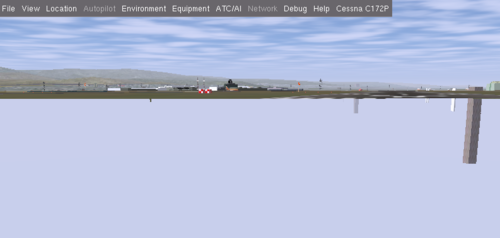
If you screen looks like the image above; make sure you have at least OSG version 2.7.6.
No render bin name specified in render bin section
Update SimGear (or binary) and your data directory.
No render bin number specified in render bin section
Update SimGear (or binary) and your data directory.
... not a valid win32 application
This Windows error could have various reasons to pop up. Usually, the file that is causing troubles is mentioned. Re-installing this file might solve the problem.
OBJECT_SIGN: unsupported glyph `.'
Check the OBJECT_SIGN lines in the .stg file of the tile that was loaded when this error showed up.
OpenAL error <AL_INVALID_VALUE>: bind source <alGenSources>
Failed to generate audio source.
This error is probably displayed because of some misdirected audio settings in the aircraft setup. Check the -sound.xml file of the aircraft and see if all files refered to really exist. If not, try to contact the author of the plane, so he can fix the problem in the CVS version or solve the problem yourself and let someone commit the patch.
OpenAL error (AL_INVALID_VALUE): constructor (alBufferData)
Fatal error: Failed to buffer data.
Disabling sound is a temporarily solution for this problem.
osgDB ac3d reader: could not find texture...
osgDB ac3d reader: detected surface with less than 3 vertices!
In one of the loaded models a non-existing surface is found. This can be a single line (sometimes used to simulate thin wires) or a fault in the model.
Program's vertex attrib binding ..., usrAttr...
Tells you that an effect binded certain attributes to a shader.
QNAN
(Q)NAN stands for (Quiet) Not A Number, produced by 0/0 or other floating point break downs. There can be various causes for this:
- Using a "flap start" value of 0. Use some small value like 0.001 instead.
Scaling image...
This means a texture, whether in the scenery on your aircraft or anyone elses (when multiplayer is enabled), is not sized to powers of two. All textures in ProFlight have to be sized to power of two (eg. 16*16, 32*64, 32*1024). As of version 1.9 textures are resized automaticly, but it does slow your computer down, so it's better to resize the noted textures.
ssgInit called without a valid OpenGL context
In short, your GL libraries are broken. So far only Red Hat 7.x users have experienced this (see http://www.redhat.com/bugzilla/show_bug.cgi?id=18867). The only solutions are possibly complicated ones: you can either change distributions (most of us prefer Debian) or upgrade/downgrade your Mesa libs.
The system cannot find the file specified
If you are running Windows Vista; start by looking in C:\Users\Owner\AppData\Local\VirtualStore and seeing if you have a folder called ProFlightSimulator in there. If you do, cut-and-paste (merge) that one with C:\Program Files\FlightProductions\ProFlightSimulator and try to launch ProFlight again.
Hint: you may need to go under Tools and Folder Options to specify "Show Hidden/System Files and Folders" in order for AppData to be visible.
Time zone reading failed
This is probably caused by a line-ending problem in the timezone files. Win32 users can resolve the problem by downloading a DOS to UNIX conversion utility available at http://www.nottingham.ac.uk/~eazdluf/d2u.zip. Run as `d2u *.tab` from within the timezone directory to fix your timezone files
Traffic manager could not find airport
There is either an airport missing from apt.dat, or there is a wrong ICAO code in a traffic file. An airport missing from apt.dat could be due to a recent opening.
Unable to choose requested pixel format
Error should be solved as of version 1.9. If not, try changing your BPP and/or resolution.
Unable to find airport details for .... in FGTower::Init()
Unable to open aircraft directory
The aircraft that you are trying to run most likely relies on another aircraft, which you did not install (yet). The error shows what aircraft, so go download that one!
Unexpected tag '...' found in YASim aircraft description
ProFlight found a non-existing tag in the FDM of the aircraft you are trying to launch. If you have not changed the original aircraft, contact the aircraft author. Else, check the FDM througly for mistakes.
Unknown ... aircraft: ... defaulting to C172
ProFlight is unable to load the forced FDM (set through --fdm=... or via Advanced > Flight Model in FGRun) for this aircraft. ProFlight automatically picks the right FDM for each aircraft, so there is no need to set it manually, unless you know what you are doing. In the Flight Model dialog of FGRun, set the FDM to jsb; that is the "auto setting".
Unknown exception to the main loop. Aborting...
Possible cause: No such file or directory
This error could have a variety of sources, among them missing files but also other things. Increasing the log level to debug and repeating excactly what you did when the error came up, might provide some more information on what ProFlight was doing when the error occurred.
- Setting your BPP to a lower value might work.
- Changing the resolution to a smaller one might work as well.
WARNING: Couldn't convert texture...
You are trying to run an aircraft not compatible with your ProFlight version. Most of the time, this error appears when you fly an aircraft, textured with .png files on versions older than 1.9. Convert the textures manually to .rgb or upgrade your ProFlight version.
Warning: Could not find plugin to read objects from file ...
A library is missing from your computer. Therefore, certain fileformats cannot be read. Try to reinstall/update OSG, as the libraries used by ProFlight should be part of the standard package.
Warning: Picked up TriangleIntersect
Reduce your Log Level to alert. Or send the fgfs output to /dev/null (unix systems) or 2>nul (Windows). The errors might still be shown, but do not affect the sim anymore.
Warning: TangentSpaceGenerator: unknown primitive mode 9
This is an OSG error, showing up when an effect needs tangent vectors, but polygons are not support. The error itself can be ignored, altough some shaders may look wrong. Shader developers should try to minimise the use of polygons and use triangles and quads instead.
YASim SOLUTION FAILURE: Solution failed to converge after 10000 iterations
Some control in the YASim FDM is too weak, according to YASim, to control the aircraft. An effectiveness tag will be required in the FDM to solve this error.
YASim SOLUTION FAILURE:
Zero length fuselage
There is a problem in the FDM. A fuselage section with similar ax and ay was created. Change the ax and/or ay values to match the aircraft.
FGMultiplayerMgr::Open - Failed to bind receive socket
This means ProFlight was unable to open the listening network socket required by the --multiplay=in option. Frequently this option can be omitted and ProFlight will figure out the necessary parameters automatically. Common reasons are:
- Address given in the option does not resolve to one of the IP addresses of the local machine. This parameter should only be required if you want to fine-tune the network behavior. Omitting it directs ProFlight to listen on all local interfaces automatically. Example:
--multiplay=in,10,,5001
Notice that you still need the comma.
- The UDP port given in the option (or the default port 5000 if no option given) is already in use. Verify nothing is using the port.
Affiliates | Need Support?
Privacy Policy :: Disclaimer/Terms
|